> ## Documentation Index
> Fetch the complete documentation index at: https://docs.terratwin.com/llms.txt
> Use this file to discover all available pages before exploring further.
# Quick start
> Build your first TerraTwin emissions request step by step, then extend it to more detailed and multimodal transport chains.
This tutorial builds a complete emissions request one part at a time.
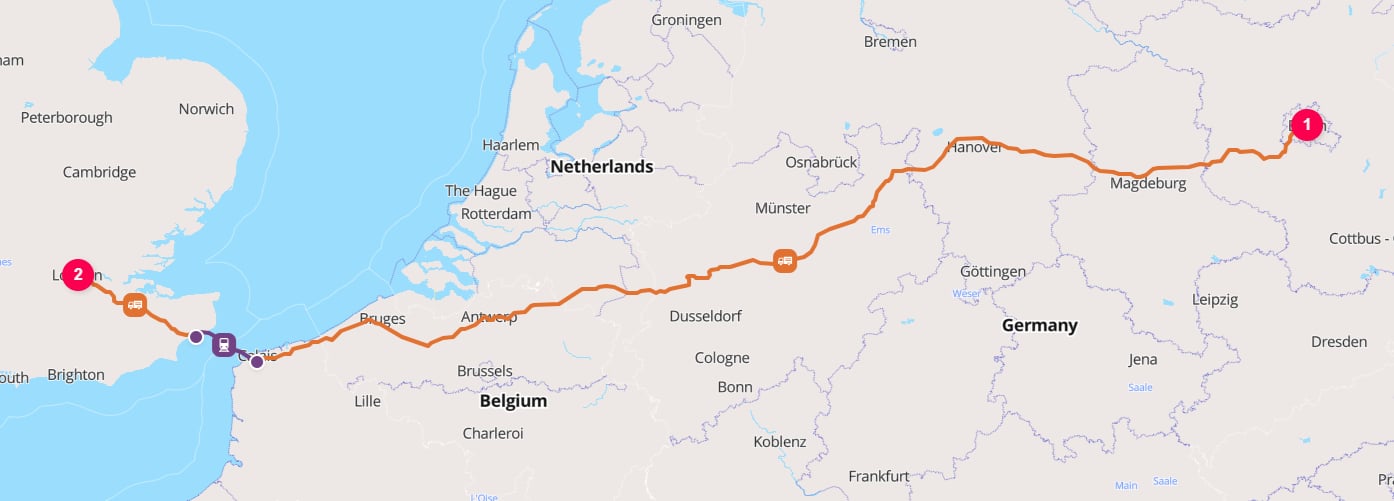
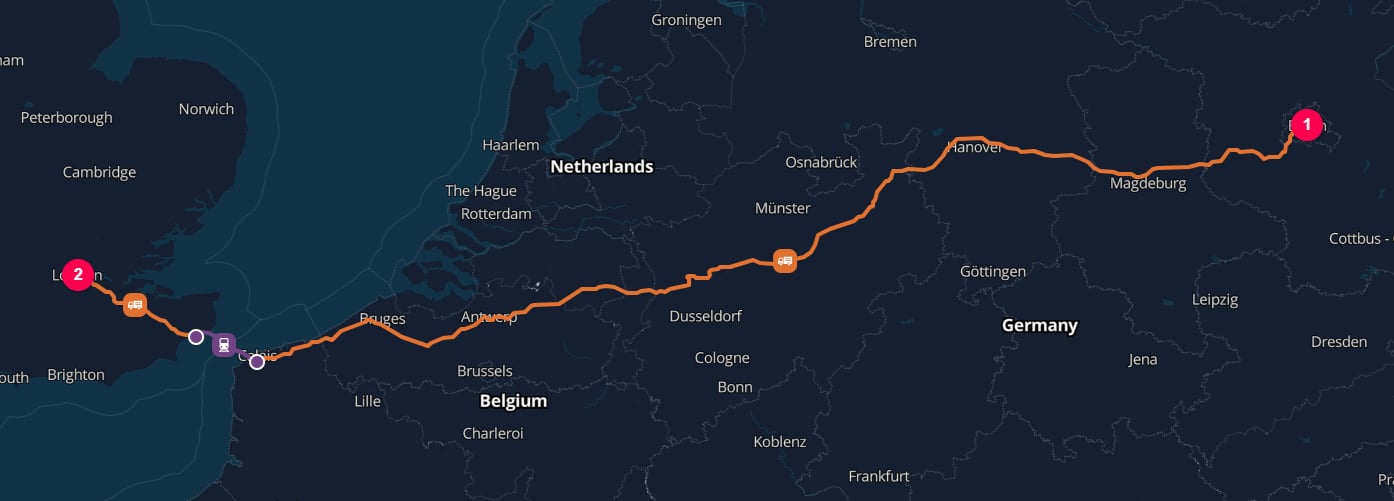
By the end, you will have calculated the emissions for moving one metric tonne of cargo from Berlin to London by road.
 Define what is being moved and how much it weighs.
Define where the shipment starts and finishes.
Describe the ordered journey between those locations.
Select how the cargo moves on each leg of the journey.
This first calculation deliberately relies on TerraTwin defaults for the road vehicle, loading, empty running, energy type, and other modelling inputs.
Once the request works, use the linked guides to replace those defaults with information you know.
## Before you begin
You need:
* A TerraTwin account
* An API key from **[Manage API Keys](https://www.terratwin.com/account/settings/api-key-manager)**
* At least one available credit
* A way to send an HTTP request; this tutorial uses `curl` for the final test
Every request must include your API key in the `x-api-key` header.
See [API keys](/content/guides/authentication) for creating, storing, rotating, and revoking keys.
Calculations consume credits according to the transport operations that TerraTwin processes.
See [Credits & usage](/content/guides/credits) for charging rules and examples.
## Build the request
We will build the request body one section at a time. Each step shows the complete JSON as it stands at that point, so you can see how the pieces fit together.
Every calculation starts with a `cargo` object.
The only required cargo property is `weight`, which contains a positive `value` and a supported `unit`.
Start with this request body:
```json theme={null}
{
"cargo": {
"weight": {
"value": 1,
"unit": "METRIC_TONNE"
}
}
}
```
The weight should include the goods and packaging supplied by the shipper. It should not include carrier equipment such as pallets or shipping containers added after handover.
This minimal object is enough for a first calculation. For more representative defaults, you can also describe the cargo category, density characteristics, and climate-control requirements.
See the [Cargo guide](/content/guides/cargo) for supported weight units, cargo categories, temperature control, density, and how cargo properties affect transport and hub defaults.
Add top level `origin` and `destination` objects.
Each location needs a `type` and enough information for TerraTwin to resolve it.
For this tutorial, use structured address `PLACE` locations:
```json theme={null}
{
"cargo": {
"weight": {
"value": 1,
"unit": "METRIC_TONNE"
}
},
"origin": {
"type": "PLACE",
"street": "Platz der Republik 1",
"postcode": "11011",
"city": "Berlin",
"countryCode": "DE"
},
"destination": {
"type": "PLACE",
"postcode": "SW1A 0AA",
"city": "London",
"countryCode": "GB"
}
}
```
`PLACE` is suitable for cities, addresses, postcodes, buildings, or coordinates. TerraTwin can also resolve purpose specific locations such as `AIRPORT`, `RAIL_YARD`, and `HARBOR`.
See the [Locations guide](/content/guides/locations) for coordinates, structured and freeform addresses, postcodes, IATA airport codes, UN/LOCODEs, location types, and matching behavior.
Add a `transportChain` array to describe how the cargo moves from the origin to the destination.
A transport chain is ordered. Each element is either:
* A **transport operation**, which moves the cargo on one requested leg
* A **`HUB`**, which defines the boundary and handling point between legs
This shipment has only one leg, so the chain contains one road operation:
```json theme={null}
{
"cargo": {
"weight": {
"value": 1,
"unit": "METRIC_TONNE"
}
},
"origin": {
"type": "PLACE",
"street": "Platz der Republik 1",
"postcode": "11011",
"city": "Berlin",
"countryCode": "DE"
},
"destination": {
"type": "PLACE",
"postcode": "SW1A 0AA",
"city": "London",
"countryCode": "GB"
},
"transportChain": [
{
"type": "ROAD"
}
]
}
```
See the [Transport chains guide](/content/guides/transport-chains) for single leg and multimodal chains, chain boundaries, and the difference between requested legs and the operations realized in the response.
The `type` inside the transport chain element selects the operation for that leg.
This tutorial uses `ROAD`, which lets TerraTwin choose a default vehicle and operating configuration.
Use the guide for the operation you need when you are ready to add more detail:
Trucks, vans, vehicle size and structure, loading, empty running, energy, consumption data, and route options.
[Read the Road transport guide](/content/guides/road-transport)
Train selection, train weight, cargo mappings, traction energy, rail yards, and connector movements.
[Read the Rail transport guide](/content/guides/rail-transport)
Vessels, capacity and size, containers, harbor selection, and navigation constraints.
[Read the Water transport guide](/content/guides/water-transport)
Aircraft, airports, belly freight and freighters, route restrictions, and stopovers.
[Read the Air transport guide](/content/guides/air-transport)
Use this only when the mode is genuinely unknown. TerraTwin tries fallback modes in order and selects the first one that succeeds.
[Read the Unknown transport guide](/content/guides/unknown-transport)
Use this when several known alternatives contribute to one leg. TerraTwin calculates every alternative and combines them using percentages that total `100`.
[Read the Weighted modes transport guide](/content/guides/weighted-modes-transport)
`UNKNOWN` and `WEIGHTED_MODES` solve different problems. `UNKNOWN` stops at the first feasible fallback mode; `WEIGHTED_MODES` calculates all supplied alternatives and returns their weighted combination.
## Send the calculation
In an application, you would normally send this JSON using the HTTP client for your programming language or framework. For this tutorial, use `curl` to make the same request directly.
Select the shell you use below. Each command sends the same HTTP request; only the quoting and line-continuation syntax differs between shells.
Replace `your-api-key` with your TerraTwin API key, then run the command.
```powershell theme={null}
curl.exe --silent --show-error --fail-with-body `
--request POST `
--url "https://api.terratwin.com/api/v1/transportation/emissions/calculate" `
--header "Content-Type: application/json" `
--header "x-api-key: your-api-key" `
--data-raw '{
"cargo": {
"weight": {
"value": 1,
"unit": "METRIC_TONNE"
}
},
"origin": {
"type": "PLACE",
"street": "Platz der Republik 1",
"postcode": "11011",
"city": "Berlin",
"countryCode": "DE"
},
"destination": {
"type": "PLACE",
"postcode": "SW1A 0AA",
"city": "London",
"countryCode": "GB"
},
"transportChain": [
{
"type": "ROAD"
}
]
}'
```
```powershell theme={null}
curl.exe --% --silent --show-error --fail-with-body --request POST --url "https://api.terratwin.com/api/v1/transportation/emissions/calculate" --header "Content-Type: application/json" --header "x-api-key: your-api-key" --data-raw "{\"cargo\":{\"weight\":{\"value\":1,\"unit\":\"METRIC_TONNE\"}},\"origin\":{\"type\":\"PLACE\",\"street\":\"Platz der Republik 1\",\"postcode\":\"11011\",\"city\":\"Berlin\",\"countryCode\":\"DE\"},\"destination\":{\"type\":\"PLACE\",\"postcode\":\"SW1A 0AA\",\"city\":\"London\",\"countryCode\":\"GB\"},\"transportChain\":[{\"type\":\"ROAD\"}]}"
```
```bat theme={null}
curl.exe --silent --show-error --fail-with-body ^
--request POST ^
--url "https://api.terratwin.com/api/v1/transportation/emissions/calculate" ^
--header "Content-Type: application/json" ^
--header "x-api-key: your-api-key" ^
--data-raw "{\"cargo\":{\"weight\":{\"value\":1,\"unit\":\"METRIC_TONNE\"}},\"origin\":{\"type\":\"PLACE\",\"street\":\"Platz der Republik 1\",\"postcode\":\"11011\",\"city\":\"Berlin\",\"countryCode\":\"DE\"},\"destination\":{\"type\":\"PLACE\",\"postcode\":\"SW1A 0AA\",\"city\":\"London\",\"countryCode\":\"GB\"},\"transportChain\":[{\"type\":\"ROAD\"}]}"
```
```bash theme={null}
curl --silent --show-error --fail-with-body \
--request POST \
--url 'https://api.terratwin.com/api/v1/transportation/emissions/calculate' \
--header 'Content-Type: application/json' \
--header 'x-api-key: your-api-key' \
--data-raw '{
"cargo": {
"weight": {
"value": 1,
"unit": "METRIC_TONNE"
}
},
"origin": {
"type": "PLACE",
"street": "Platz der Republik 1",
"postcode": "11011",
"city": "Berlin",
"countryCode": "DE"
},
"destination": {
"type": "PLACE",
"postcode": "SW1A 0AA",
"city": "London",
"countryCode": "GB"
},
"transportChain": [
{
"type": "ROAD"
}
]
}'
```
Treat your API key as a secret. The inline value is convenient for this first test, but do not commit a real key to source control or share it in logs, screenshots, or support messages.
A successful request returns HTTP `200` and a JSON calculation result.
## Read the result
Start with these top-level response properties:
| Property | What it tells you |
| -------------------------------------------------------------------------- | --------------------------------------------------------------------------------------------------------- |
|
Define what is being moved and how much it weighs.
Define where the shipment starts and finishes.
Describe the ordered journey between those locations.
Select how the cargo moves on each leg of the journey.
This first calculation deliberately relies on TerraTwin defaults for the road vehicle, loading, empty running, energy type, and other modelling inputs.
Once the request works, use the linked guides to replace those defaults with information you know.
## Before you begin
You need:
* A TerraTwin account
* An API key from **[Manage API Keys](https://www.terratwin.com/account/settings/api-key-manager)**
* At least one available credit
* A way to send an HTTP request; this tutorial uses `curl` for the final test
Every request must include your API key in the `x-api-key` header.
See [API keys](/content/guides/authentication) for creating, storing, rotating, and revoking keys.
Calculations consume credits according to the transport operations that TerraTwin processes.
See [Credits & usage](/content/guides/credits) for charging rules and examples.
## Build the request
We will build the request body one section at a time. Each step shows the complete JSON as it stands at that point, so you can see how the pieces fit together.
Every calculation starts with a `cargo` object.
The only required cargo property is `weight`, which contains a positive `value` and a supported `unit`.
Start with this request body:
```json theme={null}
{
"cargo": {
"weight": {
"value": 1,
"unit": "METRIC_TONNE"
}
}
}
```
The weight should include the goods and packaging supplied by the shipper. It should not include carrier equipment such as pallets or shipping containers added after handover.
This minimal object is enough for a first calculation. For more representative defaults, you can also describe the cargo category, density characteristics, and climate-control requirements.
See the [Cargo guide](/content/guides/cargo) for supported weight units, cargo categories, temperature control, density, and how cargo properties affect transport and hub defaults.
Add top level `origin` and `destination` objects.
Each location needs a `type` and enough information for TerraTwin to resolve it.
For this tutorial, use structured address `PLACE` locations:
```json theme={null}
{
"cargo": {
"weight": {
"value": 1,
"unit": "METRIC_TONNE"
}
},
"origin": {
"type": "PLACE",
"street": "Platz der Republik 1",
"postcode": "11011",
"city": "Berlin",
"countryCode": "DE"
},
"destination": {
"type": "PLACE",
"postcode": "SW1A 0AA",
"city": "London",
"countryCode": "GB"
}
}
```
`PLACE` is suitable for cities, addresses, postcodes, buildings, or coordinates. TerraTwin can also resolve purpose specific locations such as `AIRPORT`, `RAIL_YARD`, and `HARBOR`.
See the [Locations guide](/content/guides/locations) for coordinates, structured and freeform addresses, postcodes, IATA airport codes, UN/LOCODEs, location types, and matching behavior.
Add a `transportChain` array to describe how the cargo moves from the origin to the destination.
A transport chain is ordered. Each element is either:
* A **transport operation**, which moves the cargo on one requested leg
* A **`HUB`**, which defines the boundary and handling point between legs
This shipment has only one leg, so the chain contains one road operation:
```json theme={null}
{
"cargo": {
"weight": {
"value": 1,
"unit": "METRIC_TONNE"
}
},
"origin": {
"type": "PLACE",
"street": "Platz der Republik 1",
"postcode": "11011",
"city": "Berlin",
"countryCode": "DE"
},
"destination": {
"type": "PLACE",
"postcode": "SW1A 0AA",
"city": "London",
"countryCode": "GB"
},
"transportChain": [
{
"type": "ROAD"
}
]
}
```
See the [Transport chains guide](/content/guides/transport-chains) for single leg and multimodal chains, chain boundaries, and the difference between requested legs and the operations realized in the response.
The `type` inside the transport chain element selects the operation for that leg.
This tutorial uses `ROAD`, which lets TerraTwin choose a default vehicle and operating configuration.
Use the guide for the operation you need when you are ready to add more detail:
Trucks, vans, vehicle size and structure, loading, empty running, energy, consumption data, and route options.
[Read the Road transport guide](/content/guides/road-transport)
Train selection, train weight, cargo mappings, traction energy, rail yards, and connector movements.
[Read the Rail transport guide](/content/guides/rail-transport)
Vessels, capacity and size, containers, harbor selection, and navigation constraints.
[Read the Water transport guide](/content/guides/water-transport)
Aircraft, airports, belly freight and freighters, route restrictions, and stopovers.
[Read the Air transport guide](/content/guides/air-transport)
Use this only when the mode is genuinely unknown. TerraTwin tries fallback modes in order and selects the first one that succeeds.
[Read the Unknown transport guide](/content/guides/unknown-transport)
Use this when several known alternatives contribute to one leg. TerraTwin calculates every alternative and combines them using percentages that total `100`.
[Read the Weighted modes transport guide](/content/guides/weighted-modes-transport)
`UNKNOWN` and `WEIGHTED_MODES` solve different problems. `UNKNOWN` stops at the first feasible fallback mode; `WEIGHTED_MODES` calculates all supplied alternatives and returns their weighted combination.
## Send the calculation
In an application, you would normally send this JSON using the HTTP client for your programming language or framework. For this tutorial, use `curl` to make the same request directly.
Select the shell you use below. Each command sends the same HTTP request; only the quoting and line-continuation syntax differs between shells.
Replace `your-api-key` with your TerraTwin API key, then run the command.
```powershell theme={null}
curl.exe --silent --show-error --fail-with-body `
--request POST `
--url "https://api.terratwin.com/api/v1/transportation/emissions/calculate" `
--header "Content-Type: application/json" `
--header "x-api-key: your-api-key" `
--data-raw '{
"cargo": {
"weight": {
"value": 1,
"unit": "METRIC_TONNE"
}
},
"origin": {
"type": "PLACE",
"street": "Platz der Republik 1",
"postcode": "11011",
"city": "Berlin",
"countryCode": "DE"
},
"destination": {
"type": "PLACE",
"postcode": "SW1A 0AA",
"city": "London",
"countryCode": "GB"
},
"transportChain": [
{
"type": "ROAD"
}
]
}'
```
```powershell theme={null}
curl.exe --% --silent --show-error --fail-with-body --request POST --url "https://api.terratwin.com/api/v1/transportation/emissions/calculate" --header "Content-Type: application/json" --header "x-api-key: your-api-key" --data-raw "{\"cargo\":{\"weight\":{\"value\":1,\"unit\":\"METRIC_TONNE\"}},\"origin\":{\"type\":\"PLACE\",\"street\":\"Platz der Republik 1\",\"postcode\":\"11011\",\"city\":\"Berlin\",\"countryCode\":\"DE\"},\"destination\":{\"type\":\"PLACE\",\"postcode\":\"SW1A 0AA\",\"city\":\"London\",\"countryCode\":\"GB\"},\"transportChain\":[{\"type\":\"ROAD\"}]}"
```
```bat theme={null}
curl.exe --silent --show-error --fail-with-body ^
--request POST ^
--url "https://api.terratwin.com/api/v1/transportation/emissions/calculate" ^
--header "Content-Type: application/json" ^
--header "x-api-key: your-api-key" ^
--data-raw "{\"cargo\":{\"weight\":{\"value\":1,\"unit\":\"METRIC_TONNE\"}},\"origin\":{\"type\":\"PLACE\",\"street\":\"Platz der Republik 1\",\"postcode\":\"11011\",\"city\":\"Berlin\",\"countryCode\":\"DE\"},\"destination\":{\"type\":\"PLACE\",\"postcode\":\"SW1A 0AA\",\"city\":\"London\",\"countryCode\":\"GB\"},\"transportChain\":[{\"type\":\"ROAD\"}]}"
```
```bash theme={null}
curl --silent --show-error --fail-with-body \
--request POST \
--url 'https://api.terratwin.com/api/v1/transportation/emissions/calculate' \
--header 'Content-Type: application/json' \
--header 'x-api-key: your-api-key' \
--data-raw '{
"cargo": {
"weight": {
"value": 1,
"unit": "METRIC_TONNE"
}
},
"origin": {
"type": "PLACE",
"street": "Platz der Republik 1",
"postcode": "11011",
"city": "Berlin",
"countryCode": "DE"
},
"destination": {
"type": "PLACE",
"postcode": "SW1A 0AA",
"city": "London",
"countryCode": "GB"
},
"transportChain": [
{
"type": "ROAD"
}
]
}'
```
Treat your API key as a secret. The inline value is convenient for this first test, but do not commit a real key to source control or share it in logs, screenshots, or support messages.
A successful request returns HTTP `200` and a JSON calculation result.
## Read the result
Start with these top-level response properties:
| Property | What it tells you |
| -------------------------------------------------------------------------- | --------------------------------------------------------------------------------------------------------- |
| totalEmissions.co2eGrams | The total greenhouse gas emissions for transport operations and logistics hubs across the complete chain. |
| transportEmissions.wtwCo2eGrams | Well-to-wheel emissions from the transport operations. |
| hubEmissions.co2eGrams | Greenhouse gas emissions from logistics hubs included in the calculation. |
| activityDistanceKm | Total modelled distance across the transport operations. |
| activityTonneKm | Total transport activity in tonne-kilometres. |
| transportChain | The realized operation results, including defaults and any connector or hub operations TerraTwin added. |
| creditCost | Credits consumed by the calculation. |
One requested transport-chain element can produce several realized elements in the response. For example, an `AIR`, `RAIL`, or `WATER` leg between two general places can include first-mile road, a departure hub, the primary mode, an arrival hub, and last-mile road.
For every request field, response schema, enum, endpoint, and error model, see the [Calculation API reference](/api-reference/calculate-transport-emissions).
## Extend the request to multiple legs
A chain can contain several transport operations, but each pair of requested operations must be separated by a `HUB` that defines where the first leg ends and the next begins.
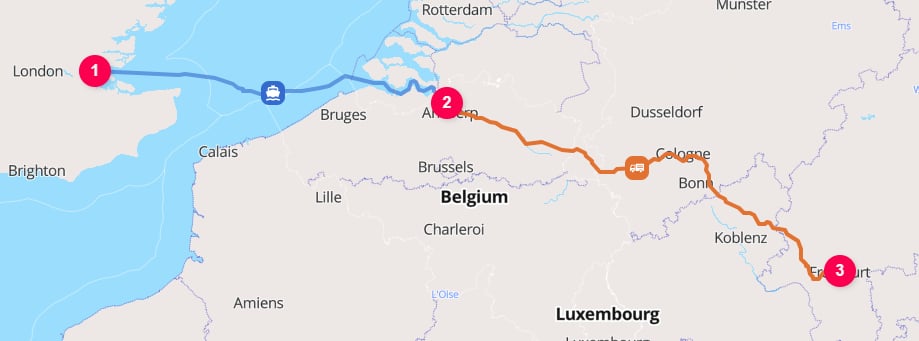
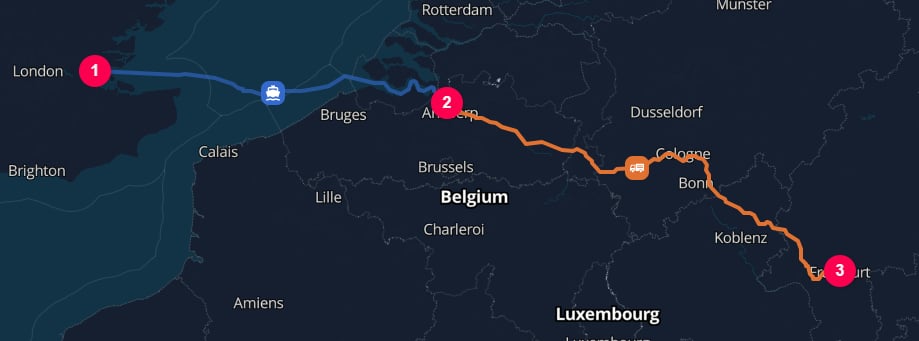
For example, this chain moves cargo by water from the port of London Gateway \[`GBSHV`] to the port of Antwerp \[`BEANR`], handles it at the Antwerp maritime terminal, and then moves it by road to Frankfurt:
```json theme={null}
{
"cargo": {
"weight": {
"value": 1,
"unit": "METRIC_TONNE"
}
},
"origin": {
"type": "HARBOR",
"unLoCode": "GBSHV"
},
"destination": {
"type": "PLACE",
"address": "Römerberg 27, 60311 Frankfurt am Main",
"countryCode": "DE"
},
"transportChain": [
{
"type": "WATER"
}, {
"type": "HUB",
"hubType": "MARITIME_TERMINAL",
"location": {
"type": "HARBOR",
"unLoCode": "BEANR"
}
}, {
"type": "ROAD"
}
]
}
```
The hub's `location` is both the destination boundary for the `WATER` leg and the origin boundary for the `ROAD` leg. The hub can also contribute cargo-handling emissions.
 See the [Hubs guide](/content/guides/hubs) for explicit and automatically inserted hubs, hub types, endpoint hubs, transition defaults, and controlling hub insertion.
A hub is not a transport movement. Do not put vehicle, distance, or energy properties on a `HUB`; configure those properties on the surrounding transport operations.
## Guide map
Use these guides as you replace defaults and model more complex shipments:
* [API keys](/content/guides/authentication)
* [Credits & usage](/content/guides/credits)
* [Cargo](/content/guides/cargo)
* [Locations](/content/guides/locations)
* [Transport chains](/content/guides/transport-chains)
* [Hubs](/content/guides/hubs)
* [Road transport](/content/guides/road-transport)
* [Rail transport](/content/guides/rail-transport)
* [Water transport](/content/guides/water-transport)
* [Air transport](/content/guides/air-transport)
* [Unknown transport](/content/guides/unknown-transport)
* [Weighted modes transport](/content/guides/weighted-modes-transport)
Use the [Calculation API reference](/api-reference/calculate-transport-emissions) for exact field constraints, allowed values, complete response objects, error codes, and result-storage endpoints.
## Troubleshooting
Error responses include `title`, `status`, `code`, `details`, and `recommendation` properties. Start with `details`, which normally identifies the field, location, or operation that failed, and then follow `recommendation`.
| Status | Likely cause | What to check |
| -------------: | ------------------------------------------------------------------------------------ | -------------------------------------------------------------------------------------------------------------------------------------------- |
| `400` | The JSON or request shape is invalid. | Check commas, braces, required properties, supported units, and enum spelling in the request body. Confirm `Content-Type: application/json`. |
| `401` | The API key is missing, invalid, or revoked. | Replace `your-api-key` with an active key and confirm the header name is exactly `x-api-key`. Generate a new key if necessary. |
| `403` | The account does not have enough credits. | Check the account credit balance and review how the requested operations are charged. |
| `422` | A location could not be resolved, or an operation could not be routed or calculated. | Add more precise location data, check codes and country codes, and confirm the selected mode is feasible between the leg boundaries. |
| `429` | The account exceeded the rate limit. | Keep request volume at or below 5 requests per second and retry with backoff. |
| `500` or `503` | A server or dependent service could not complete the calculation. | Retry after a delay. Keep the full error response if the problem continues. |
For field level validation rules and the complete error code list, use the [Calculation API reference](/api-reference/calculate-transport-emissions).
See the [Hubs guide](/content/guides/hubs) for explicit and automatically inserted hubs, hub types, endpoint hubs, transition defaults, and controlling hub insertion.
A hub is not a transport movement. Do not put vehicle, distance, or energy properties on a `HUB`; configure those properties on the surrounding transport operations.
## Guide map
Use these guides as you replace defaults and model more complex shipments:
* [API keys](/content/guides/authentication)
* [Credits & usage](/content/guides/credits)
* [Cargo](/content/guides/cargo)
* [Locations](/content/guides/locations)
* [Transport chains](/content/guides/transport-chains)
* [Hubs](/content/guides/hubs)
* [Road transport](/content/guides/road-transport)
* [Rail transport](/content/guides/rail-transport)
* [Water transport](/content/guides/water-transport)
* [Air transport](/content/guides/air-transport)
* [Unknown transport](/content/guides/unknown-transport)
* [Weighted modes transport](/content/guides/weighted-modes-transport)
Use the [Calculation API reference](/api-reference/calculate-transport-emissions) for exact field constraints, allowed values, complete response objects, error codes, and result-storage endpoints.
## Troubleshooting
Error responses include `title`, `status`, `code`, `details`, and `recommendation` properties. Start with `details`, which normally identifies the field, location, or operation that failed, and then follow `recommendation`.
| Status | Likely cause | What to check |
| -------------: | ------------------------------------------------------------------------------------ | -------------------------------------------------------------------------------------------------------------------------------------------- |
| `400` | The JSON or request shape is invalid. | Check commas, braces, required properties, supported units, and enum spelling in the request body. Confirm `Content-Type: application/json`. |
| `401` | The API key is missing, invalid, or revoked. | Replace `your-api-key` with an active key and confirm the header name is exactly `x-api-key`. Generate a new key if necessary. |
| `403` | The account does not have enough credits. | Check the account credit balance and review how the requested operations are charged. |
| `422` | A location could not be resolved, or an operation could not be routed or calculated. | Add more precise location data, check codes and country codes, and confirm the selected mode is feasible between the leg boundaries. |
| `429` | The account exceeded the rate limit. | Keep request volume at or below 5 requests per second and retry with backoff. |
| `500` or `503` | A server or dependent service could not complete the calculation. | Retry after a delay. Keep the full error response if the problem continues. |
For field level validation rules and the complete error code list, use the [Calculation API reference](/api-reference/calculate-transport-emissions).